How-to guides
One task per section, each self-contained. If you have not used Runphase before, getting started walks a whole run end to end first.
Write a runbook worth following at 2am
The plan is written while there is time to think, and read when there is not. That asymmetry is the only drafting rule that matters.
- One action per step.
A step containing "and then" should be two steps. The run tracks a single current step, and a step that is really three makes that position meaningless.
- Write the action, not the intention.
The field asks for what you do. "Drain traffic from node A" is followable. "Prepare node A" is not.
- Fill in Expected result wherever the
answer is not obvious.
Described on screen as how you know it worked. Write it for somebody who did not draft the plan, because that is often who executes it.
- Put anything that must be true beforehand in
Preflight checklist instead.
Backups taken, approval granted, the right people reachable. Preflight is not step one. It is the gate before the window opens.
- Fill in Change impact.
Systems, Services at risk and Affected users are optional and are what make a record readable a year later. The affected-users field suggests the shape it wants: e.g. ~340 HQ staff.
Do not paste secrets into a plan. Not passwords, tokens, connection strings or customer data. Steps and notes are free text and the record is immutable, so the clean-up afterwards is a redaction rather than an edit. Reference where a credential lives instead of quoting it.
Write success criteria that are worth having
Use Add criterion. A criterion is a claim you can check, not a feeling about how it went.
- Make each one independently checkable.
"The service answers on port 443 with a valid certificate" can be verified by someone else later. "Everything looks fine" cannot.
- Write the criterion for the change, not for the steps.
Steps already record that you did the work. Criteria exist to catch the change that went exactly to plan and still broke something.
- Keep the list short enough to actually verify during the window, while people are waiting.
Write a rollback plan
Write it before the window. A rollback improvised while something is broken is the one you regret.
- Rollback trigger: the condition, stated
numerically where you can.
"Error rate above 2% sustained for five minutes" is a trigger. "If it goes wrong" is not, because under pressure nobody agrees on what it means.
- Add the procedure with
Add rollback step.
Ordered, same discipline as the runbook.
- Set Rollback window, roughly how
long recovery takes.
This is what tells you whether you can still turn back inside the maintenance window, which is the decision you will actually be making.
Start a window
- Get the run to
READYfirst with Mark ready, which freezes the plan. - Start run when the window opens.
The run moves to
ACTIVE, the Execute screen takes over, and the actual start time is recorded from this moment. The record later compares it against the planned Maintenance window.
Work through the steps
- Do the current step.
There is one at a time. Step progress and Elapsed stay visible, as does rollback readiness.
- Complete step to advance.
- Add note as you go.
Anything a reader would want and cannot infer. Notes are cheap during the window and expensive to reconstruct after it.
- Add evidence where proof exists.
Takes a link or proof: a dashboard URL, a paste of command output, a graph. This is what turns a claim in the record into something checkable.
Record a deviation
The most valuable thing in the product, and the most likely to be skipped because it happens exactly when you are busiest.
- Record deviation on the step where reality diverged.
- Say what happened, then what you did about it.
Both halves matter. "Node B did not drain" is the first; "waited 90 seconds and forced it" is the second. The record shows Reason given: against the step.
- Add impact and evidence if you have them. Both optional.
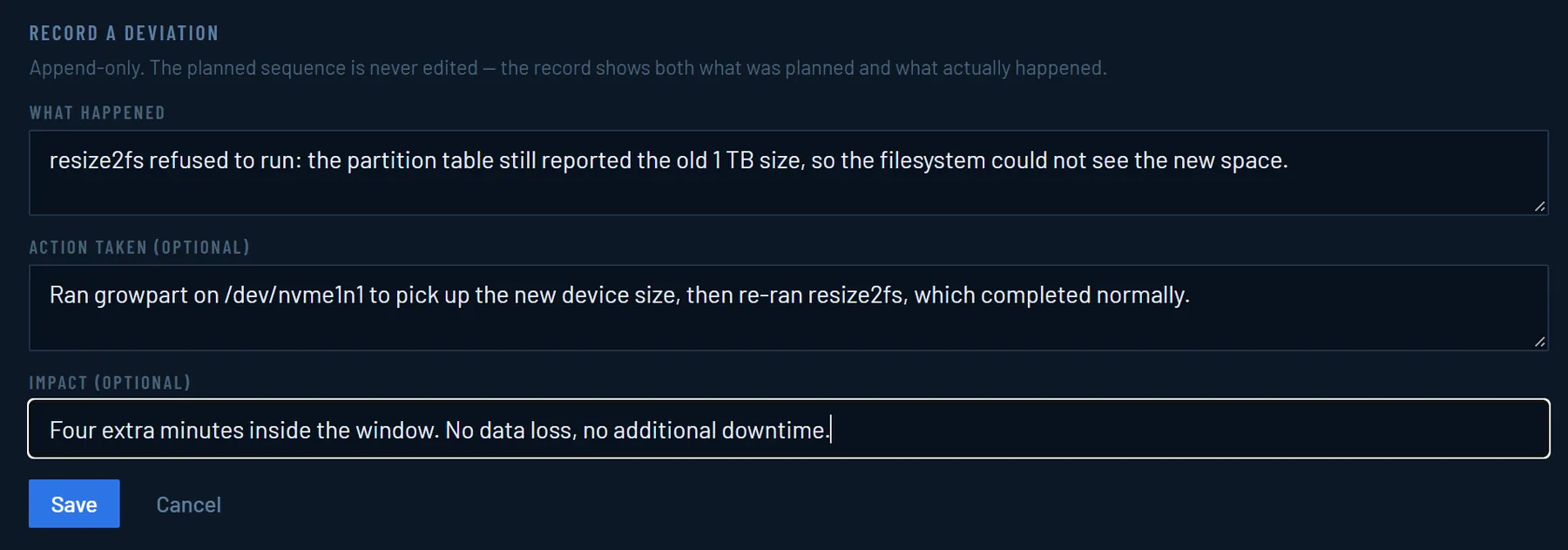
A deviation never rewrites the plan. It is appended, so the record shows the Planned sequence beside the Actual timeline. That is the comparison a post-incident review needs and the thing a tidied-up document destroys.
Record it even when it turned out not to matter. "We departed from the plan here and it was fine" is information.
Roll back
- Initiate rollback, available throughout an active run.
- Confirm.
Deliberately an explicit confirmation rather than one click, because this is not a thing to do by accident.
- The run moves to
ROLLING_BACKand the rollback procedure becomes the thing on screen.The display says Rollback in progress. Work it the same way as the runbook.
- The run closes as
ROLLED_BACK.
A rolled-back run is not a failure to be deleted. It records a change that was attempted, detected as wrong, and undone. That is usually the most useful record you have, and the one an auditor most wants to see handled well.
Verify and close
- Verify when the work is done.
The run moves to
VERIFYING. - Mark this criterion passed for each criterion you have proved.
- Close run once every required
criterion has passed. The run becomes
VERIFIED. - Or Mark failed if the change did
not work and you are not rolling back. The run becomes
FAILED.
All three outcomes are terminal and immutable. There is no separate "closed" state, and no route back to editing.
Save and reuse a template
- Save as template from a plan worth repeating.
- Apply it to a later run from the template menu while that
run is in
DRAFT.

Applying a template replaces the draft plan. You are warned before it happens. Apply first, then adjust.
Templates are snapshots. Editing a template never reaches back and rewrites a record created from it.
A template is usable by anyone who can see the Jira change it was saved from, not scoped to a project or team. See who can see a template for why, and what that means in practice.
Export a record
- Open a closed run.
- Export produces Markdown.
For pasting into a post-incident review, a change-advisory follow-up, or an audit response. It is text, so it survives being pasted anywhere.
Add the dashboard gadget
- Open a Jira dashboard and choose Edit.
- Add gadget, then find Runphase change activity.
- Add it. There is nothing to configure.
It shows changes in flight now and how the last 30 days closed.
Remove something that should not be in a record
If a secret or personal data was pasted into a run that is now closed and immutable, it can still be taken out.
- Open the closed record and use Remove this value from the record on the field concerned.
- The removal is recorded.
This is the one exception to immutability, and it is audited rather than silent. The record shows that a redaction happened. Historical truth is not quietly rewritten.
- If you need help, write to support@runphase.com.